Get set up for job matching

How to get matched with jobs

An up-to-date Jobseeker profile means you get matched with jobs that suit you. You can see your strong or partial matches on your My Jobs dashboard.

How it works

Your Jobseeker profile includes information about:

  • your skills and strengths
  • any work experience you have, paid or unpaid
  • any study and training you have started or completed
  • your work preferences, like location, hours and type of work.

When you log in and search for jobs, what’s in your profile is compared with what employers are looking for.

You can see your matches on your My Jobs dashboard, and on your Job matches page: 

  • The My Jobs dashboard shows you all match strengths, including low matches.
  • The Job matches page only shows your strong or partial matches. 

We also send you an email to let you know you have matches.

If you’ve completed your Jobseeker profile and can’t see matches, your profile is turned off. Contact us to turn your profile on and start seeing job matches.
Match strength

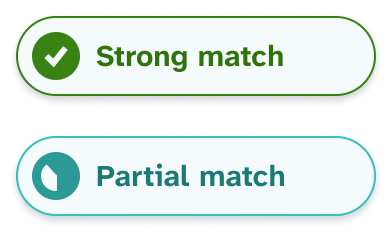
Your job match gives you information on the strength of the match. If you are a strong or partial match to the role, you will see a label on the job listing on your Job matches page.

  • Strong match means you’re a strong candidate. You have most of the things this mahi needs. This mahi could suit you well.
  • Partial match means you’re on the right track. You have some of the things this mahi needs. Check the listing to see if this mahi is suitable.
Visual examples of the match strengths: Strong and Partial. Look for these labels on job listings to see at a glance how you match.

How to get the best matches

Getting the best matches is all about having an up-to-date and complete Jobseeker profile.

  • Keep your skills, work experience, work preferences and other details up to date.
  • Fill out all the Optional fields.
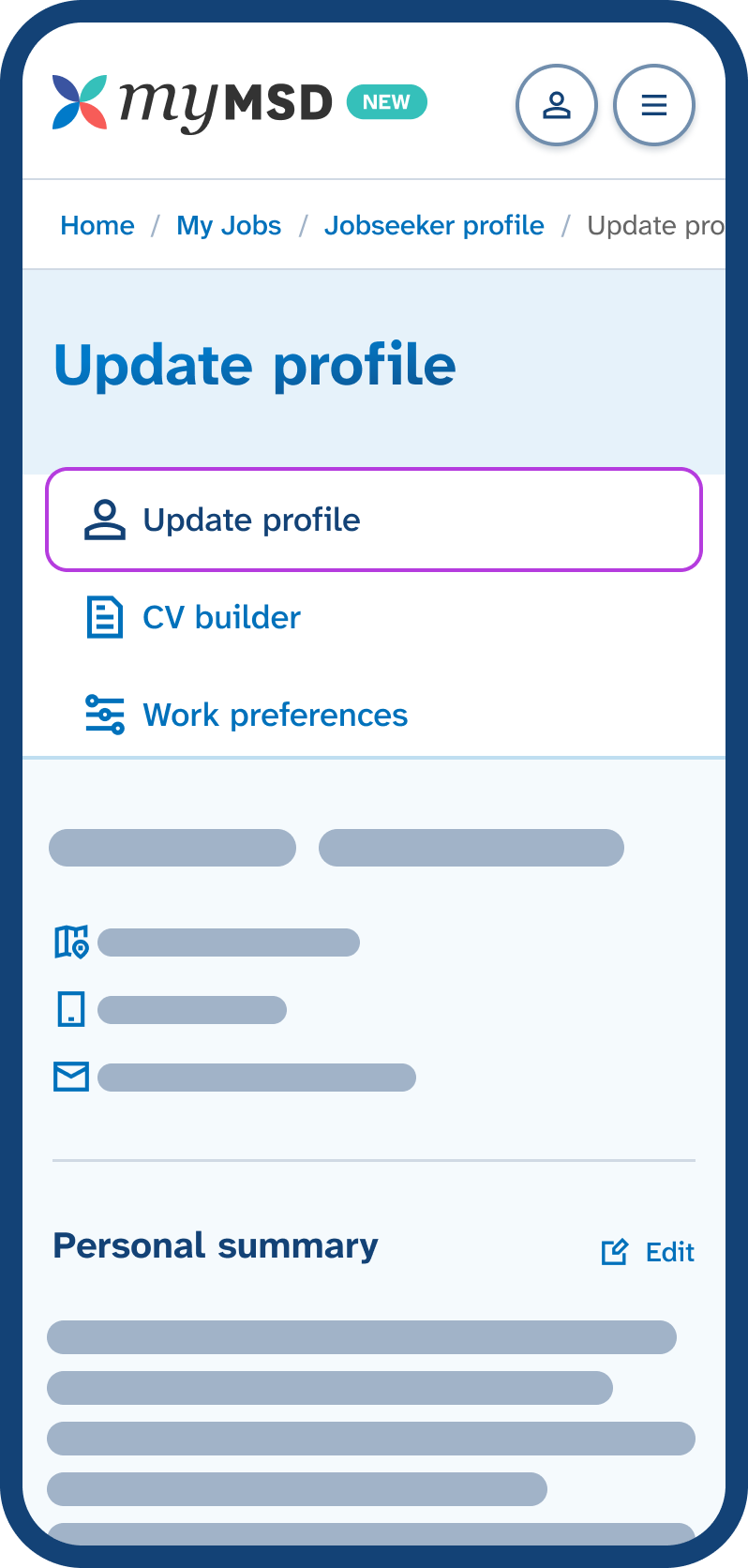
Mobile phone screen showing the Jobseeker profile menu with 'Update profile' tab highlighted, displaying the start of the profile below. Go to Update profile to update your strengths, skills, experience and education.
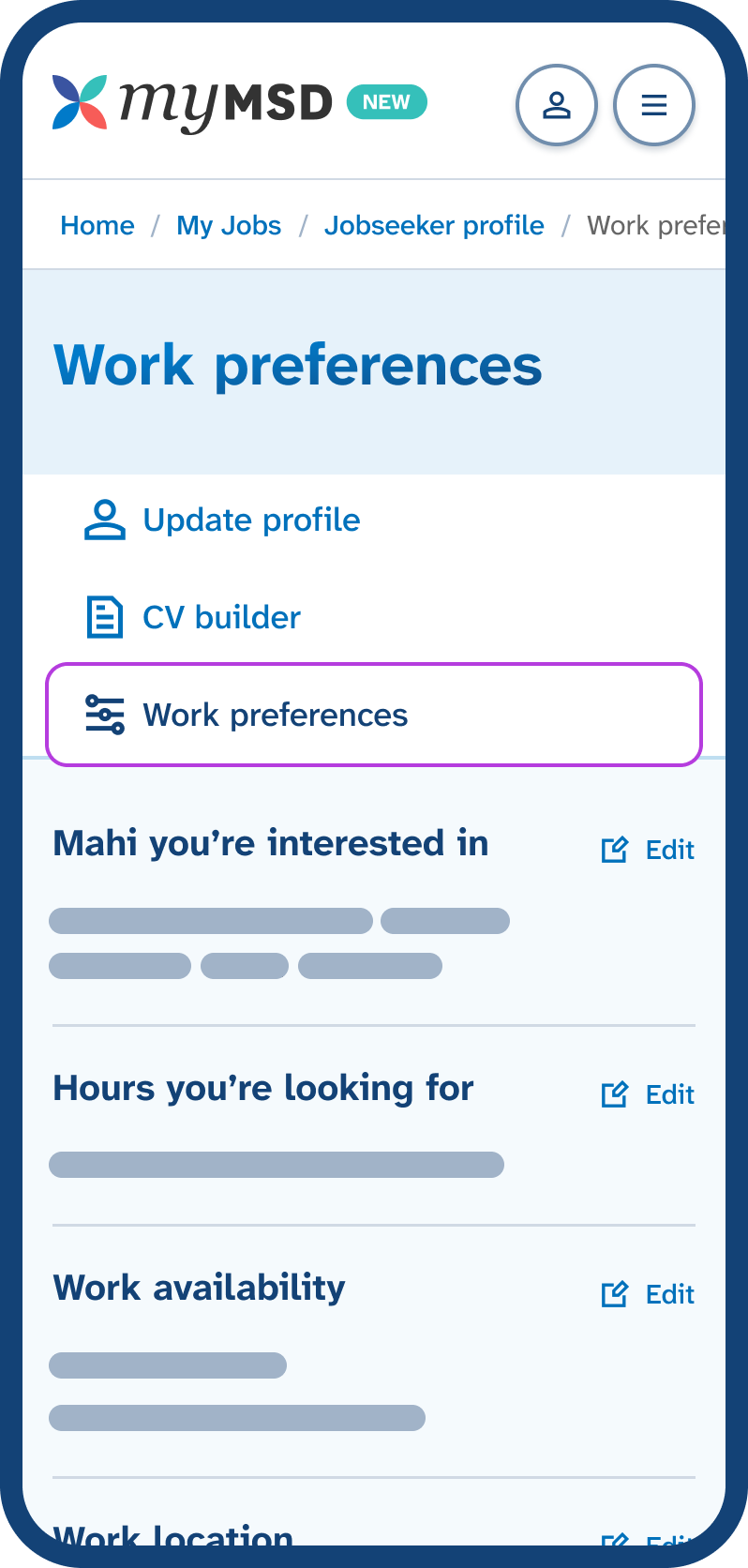
Mobile phone screen showing the Jobseeker profile menu with 'Work preferences' tab highlighted, displaying buttons below to change the work and hours you want. Go to Work preferences to update your work availability and interests.

See your job matches

Once you’re logged in, go to your Job matches under My Jobs. This is where you see your strong and partial job matches.

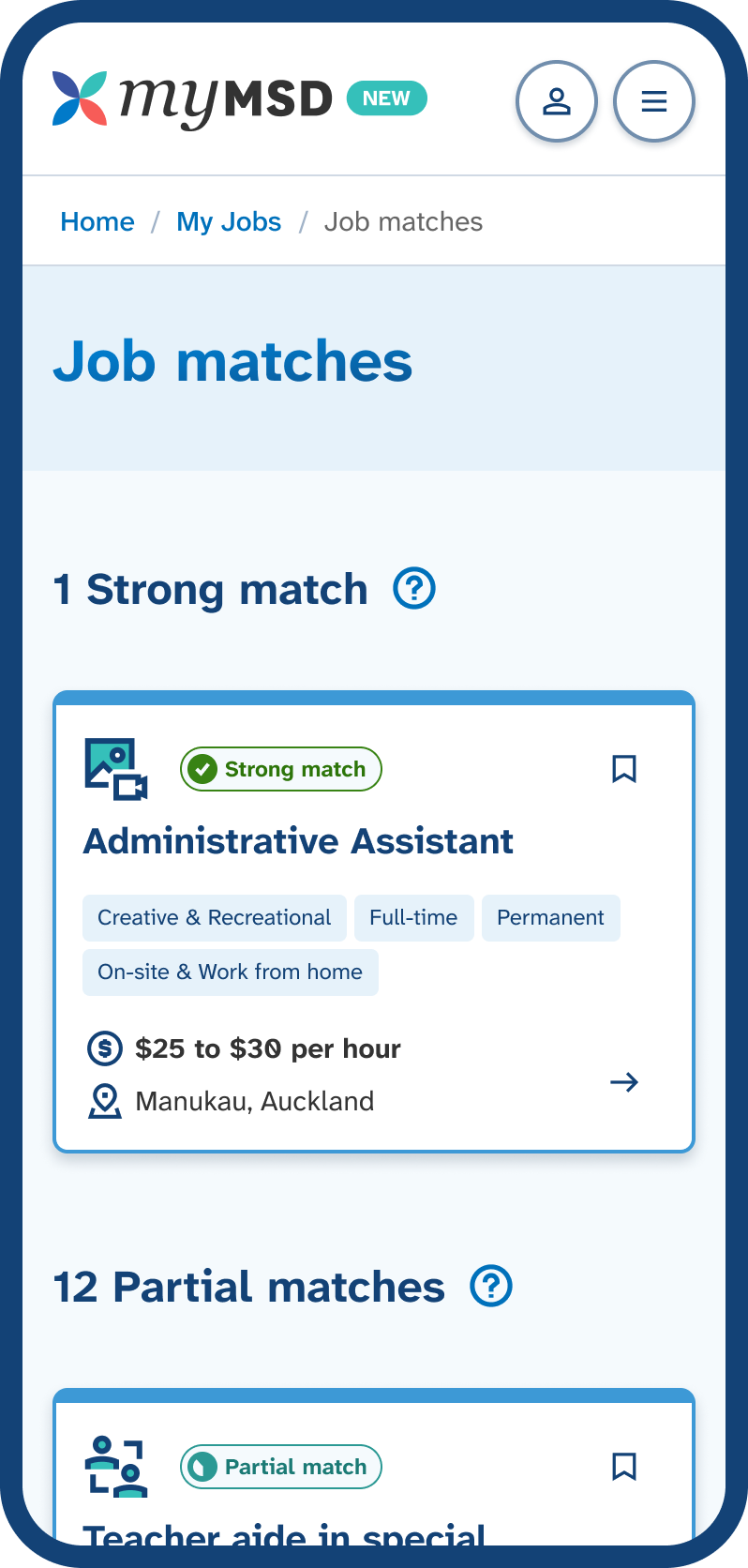
Mobile phone screen showing the Job matches page, displaying jobs listed under 'Strong matches' and 'Partial matches' sections. Go to Job matches to see jobs that are a strong or partial match.

Find your next mahi with us, today

Need help? Give the job search team a call

0800779009

Open Monday to Friday, 8am to 6pm.

How to contact us if you are deaf, hard of hearing or have a speech impairment